Affiliate Disclosure: This page contains affiliate links. If you buy through these links, PrintPilotLab may earn a small commission at no extra cost to you.
Calibration Guide
How to Calibrate E-Steps and Flow Rate for Consistent 3D Prints
Two calibrations that eliminate under-extrusion, over-extrusion, and dimensional inaccuracy — for good.
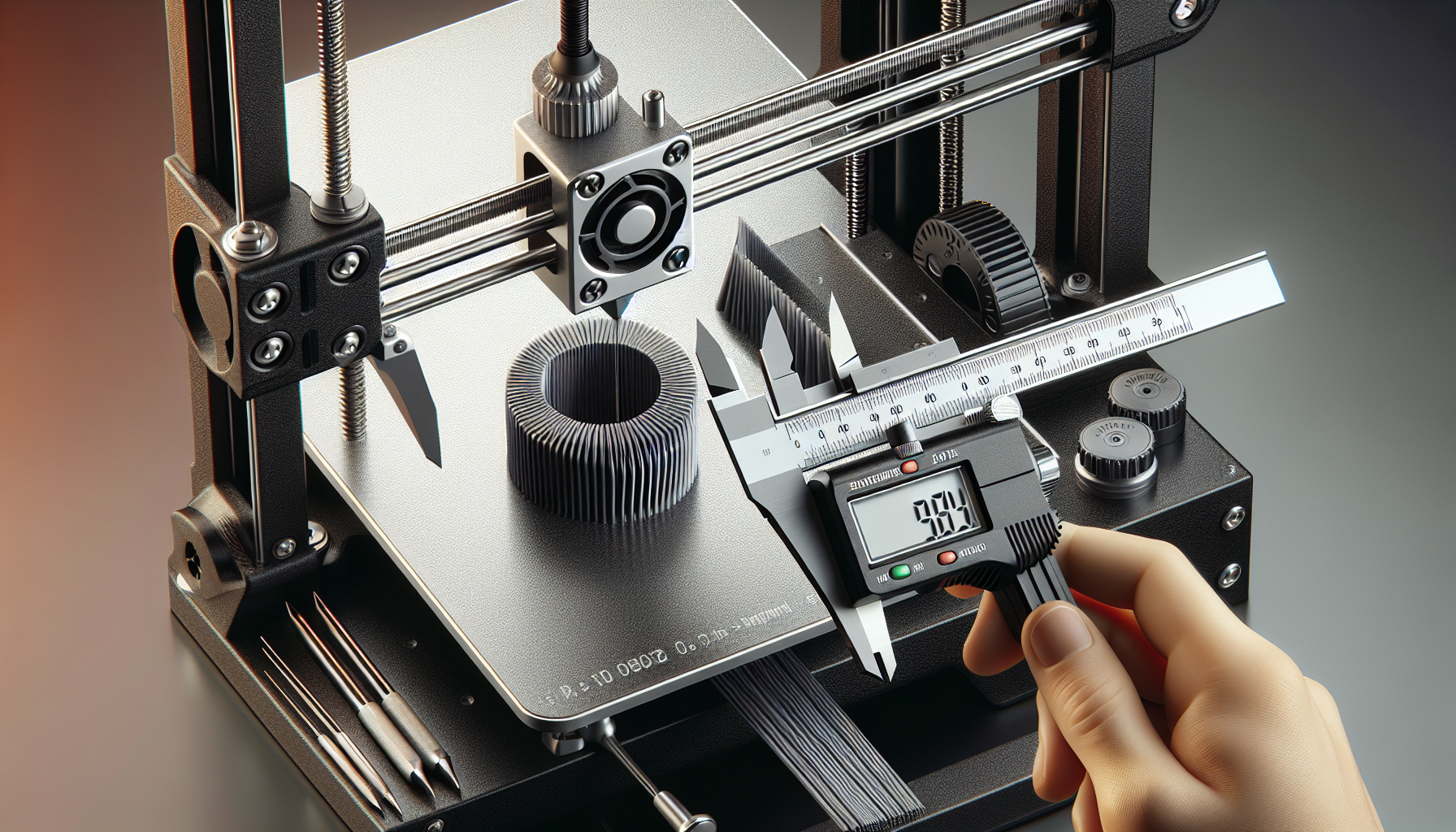
E-steps and flow rate are the two calibrations most beginners skip — and the source of most extrusion quality problems. Wrong e-steps means your printer physically extrudes the wrong amount of filament. Wrong flow rate means your slicer tells it to extrude the wrong amount. Get both right and your prints will be dimensionally accurate, surface-quality consistent, and far less likely to delaminate.
💡 E-Steps vs Flow Rate — What’s the Difference?
- E-Steps (firmware): How many motor steps = 1mm of filament. Set once per printer/extruder, stored in firmware. If this is wrong, every print is wrong.
- Flow Rate (slicer): A percentage multiplier on top of e-steps. Used to fine-tune for specific filaments. Set per filament profile.
Part 1: Calibrating E-Steps
Find Your Current E-Steps Value
Go to your printer’s menu: Configuration → Advanced Settings → Steps/mm → E-steps (varies by firmware). Write this number down. Common starting values: Ender 3 series ~93, Prusa ~280, direct drive printers vary.
rotation_distance under [extruder] — this is the Klipper equivalent of e-steps.Mark 120mm of Filament
With filament loaded, use a ruler and a marker to make a line on the filament 100mm and 120mm above where it enters the extruder. The 120mm mark is your reference; the 100mm mark is your target extrusion amount.
Command 100mm Extrusion
Heat your nozzle to printing temperature (200°C for PLA). Go to Motion → Extrude → 100mm and run it. The extruder should feed exactly 100mm of filament.
Measure & Calculate New E-Steps
Measure the distance from the extruder entrance to your 120mm mark. Subtract from 120 to find how much was actually extruded.
Example: If 18mm remains above the mark, the printer extruded 102mm instead of 100mm.
Formula:
New E-Steps = (Current E-Steps × 100) ÷ Actual mm extruded
Save & Verify
Update the value in Configuration → Advanced Settings → E-Steps and save to EEPROM (Configuration → Store Settings). Repeat the 100mm extrusion test to verify — you should now be within 1mm of 100mm.
Part 2: Calibrating Flow Rate
Print a Single-Wall Calibration Cube
Download a 20×20×20mm calibration cube and slice it with 1 perimeter, 0% infill, 0 top/bottom layers — creating a hollow single-wall box. Print it at your normal settings.
The walls should be exactly your nozzle diameter (0.4mm for a 0.4mm nozzle). Measure the wall thickness with digital calipers at multiple points.
Calculate & Adjust Flow Rate
Average your wall thickness measurements. Then calculate:
Formula:
New Flow % = (Expected wall ÷ Measured wall) × Current flow %
Example: Expected 0.4mm, measured 0.44mm, current flow 100% → New flow = (0.4 ÷ 0.44) × 100 = 90.9%
🏆 Quick Summary
Do e-steps calibration once per printer (or after changing the extruder). Do flow rate calibration once per filament brand/type. These two calibrations together eliminate the most common source of extrusion quality issues.