Affiliate Disclosure: This page may contain affiliate links. If you buy through these links, PrintPilotLab may earn a small commission at no extra cost to you.
Expert Buyer Guide
Is Multicolor 3D Printing Worth It?
AMS, CFS, MMU, toolchanger systems, purge waste, support materials, and the real-world tradeoffs beginners should understand before buying a multicolor 3D printer combo.
Quick Answer
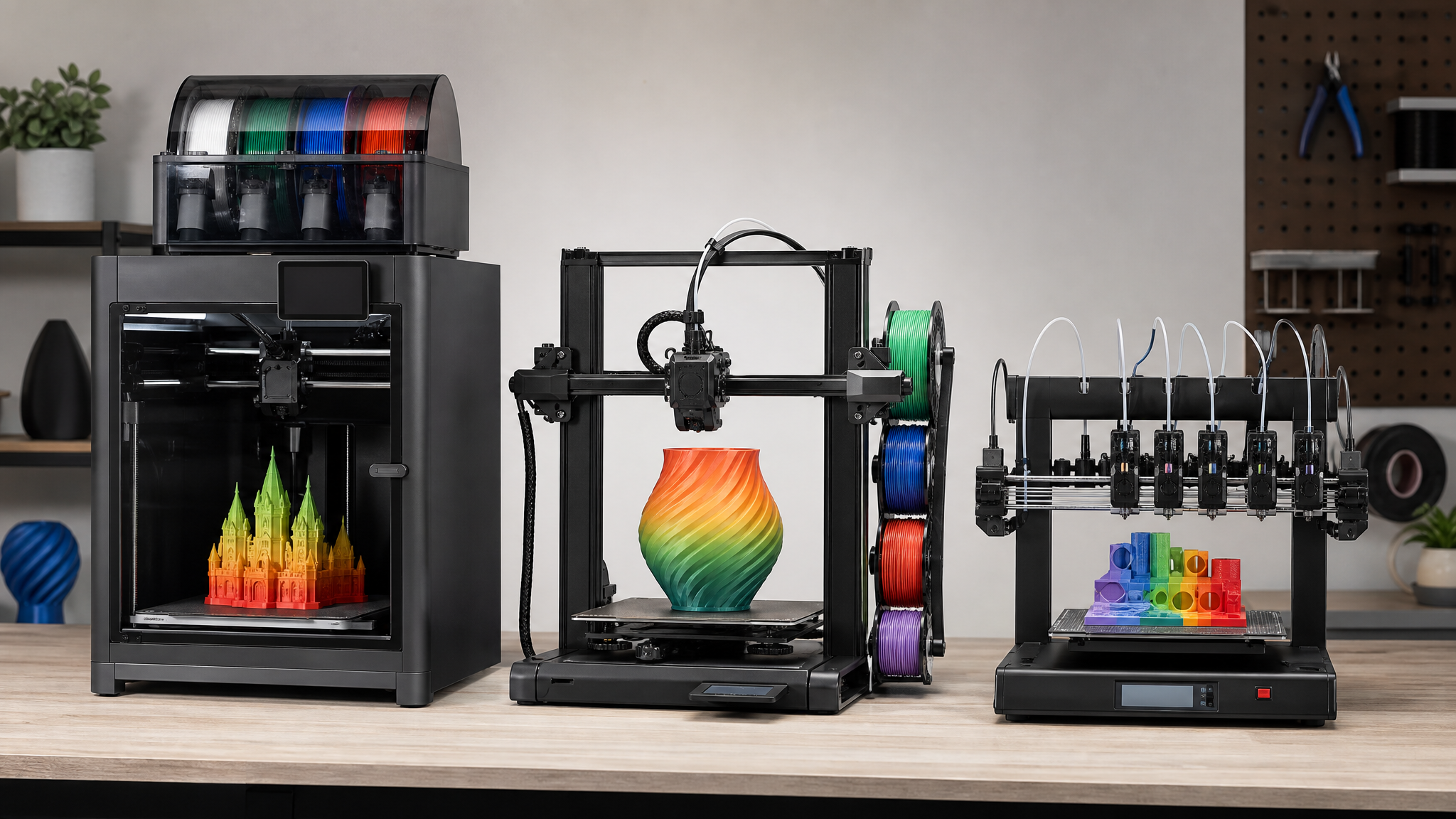
Multicolor 3D printing is worth it if you print decorative models, signs, toys, badges, gifts, tabletop pieces, labeled parts, or models that benefit from support-interface material. It is not automatically worth it if you mostly print functional brackets, bins, jigs, enclosures, TPU parts, or low-cost everyday parts. The big tradeoff is that most affordable multicolor systems use one nozzle and multiple filaments, which means every color change adds time, purge waste, and another chance for a feed error.
Multicolor printing is one of the most exciting upgrades in desktop 3D printing because it makes the printer feel more like a finished-product machine. Instead of printing a plain single-color part and painting it later, you can print colored logos, labels, character models, signs, game pieces, organizer tags, and decorative parts directly from the slicer.
But here is the expert advice: do not buy multicolor because the demo prints look impressive. Buy it because the workflow solves a problem you actually have. A good automatic material system can save manual filament swaps, recover from an empty spool, keep several filaments loaded, and use special support materials. A bad-fit multicolor purchase can double your print time, waste filament, clutter your desk, and add troubleshooting you were not ready for.
This guide explains the main systems — Bambu AMS and AMS Lite, Bambu AMS 2 Pro, Creality CFS, Prusa MMU3, and toolchanger-style printers like the Prusa XL — in plain language. The goal is not to crown one universal winner. The goal is to help you decide whether multicolor belongs in your setup at all.
01
What “Multicolor 3D Printing” Actually Means
In consumer FDM printing, multicolor usually means a printer can automatically switch between multiple spools of filament during one job. That sounds simple, but the hardware approach matters a lot.
| System type | Examples | How it works | Main tradeoff |
|---|---|---|---|
| Single-nozzle filament switching | Bambu AMS, AMS Lite, AMS 2 Pro, Creality CFS, Prusa MMU3 | Several filaments feed into one hotend. The printer unloads one filament, loads another, purges the old color, and keeps printing. | Most affordable and common, but creates purge waste and adds time. |
| Toolchanger / multi-toolhead | Prusa XL, Bambu H2D dual-nozzle approach | Each toolhead/nozzle can keep its own material ready. The printer changes tools instead of constantly flushing one nozzle. | Much lower waste, better true multi-material use, but far more expensive and physically larger. |
| Manual color changes | Any basic FDM printer | The slicer pauses at a layer and you manually swap filament. | Cheap and useful for signs or layer-color changes, but not good for complex full-color models. |
The key distinction is this: single-nozzle systems are multicolor by switching filament. Toolchanger systems are closer to true multi-material printing because each material can have its own extrusion path.
02
The Main Benefit Is Not Just Color — It Is Workflow
Most people notice the colorful models first, but the workflow advantages are just as important.
- Automatic color changes: useful for signs, labels, logos, toys, game pieces, decorative models, and gifts.
- Filament backup: some systems can automatically continue with another spool when one runs out.
- Loaded material library: keeping PLA, PETG, support filament, or common colors loaded reduces manual swapping.
- Support-interface material: using a different material only at the support contact layer can make supports release cleaner.
- Batch consistency: if you sell small products, automatic color placement can reduce painting and post-processing time.
Expert angle
For many owners, the best use of multicolor hardware is not a four-color dragon. It is a practical two-material print: PETG part with PLA support interface, a black organizer with white text, or a product label printed directly into the part.
If you only think of multicolor as “rainbow prints,” you will underestimate where it is useful. If you ignore the waste and complexity, you will overestimate it.
03
The Big Cost: Purge Waste and Print Time
Affordable multicolor systems usually feed several filaments into one nozzle. That nozzle cannot instantly switch from red to white. It has to push out enough red plastic that the new white plastic is clean. That discarded plastic is called purge or flush.
The slicer may also print a wipe tower or prime tower, which is a sacrificial block that stabilizes filament flow after color changes. Some slicers can reduce waste with options like wipe to infill or wipe to object, but they do not eliminate the basic problem.
| Print situation | Waste risk | Why |
|---|---|---|
| Large sign with text on top | Low to moderate | Only a few color-change layers may be needed. |
| Two-color logo with big separated regions | Moderate | Color changes happen, but not necessarily on every layer. |
| Tiny figurine with four colors throughout | High | Many color changes per layer can create more purge than actual part material. |
| Support-interface material only | Often reasonable | The second material is used only where supports touch the model. |
| Toolchanger multi-material print | Much lower purge waste | Each material has its own tool/nozzle, so less flushing is required. |
One useful way to think about it: a single color change may only waste a small amount of plastic, but hundreds of changes add up fast. Dark-to-light changes often need more purge than light-to-dark changes because even a small amount of dark contamination is visible in a light filament.
Do the waste math before buying
If a model changes colors 500 times, even a tiny purge amount per change becomes a lot of filament. Then add the wipe tower, failed prints, brims, and conservative slicer defaults. This is why some multicolor prints look cheap in the slicer preview but feel expensive after you empty the poop bucket.
Print time also rises because each color change involves unloading, feeding, cutting or retracting, purging, priming, and resuming. A print that would take three hours in one color can easily become an overnight print if the model changes color constantly.
04
AMS vs CFS vs MMU vs Toolchanger: The Practical Difference
| System | Best fit | Strengths | Watch-outs |
|---|---|---|---|
| Bambu AMS / AMS Lite | Beginners who want the most polished color ecosystem | Strong slicer integration, RFID with Bambu filament, filament backup, mature community, easy model ecosystem through MakerWorld. | Single-nozzle waste, spool compatibility limits, not ideal for generic TPU/TPE or abrasive materials depending on AMS version. |
| Bambu AMS 2 Pro | Users who want multicolor plus filament storage/drying improvements | Adds active drying up to 65°C, air-tight storage, faster feeding, better maintenance access, broad Bambu compatibility. | Higher cost, accessory requirements vary by printer, still has single-nozzle purge waste on most setups. |
| Creality CFS | Creality/K2/Hi-series buyers who want a Bambu-style color workflow | Four-slot system, expandable color count, RFID-style workflow with supported filament, promising for Creality ecosystem users. | Ecosystem maturity and firmware experience should be checked for the exact printer before buying. |
| Prusa MMU3 | Prusa users who want multi-filament capability and are comfortable with setup | Supports up to five filaments, strong documentation culture, useful for Prusa owners who want to expand existing machines. | More manual setup/space management than sealed AMS-style boxes; purge tuning still matters. |
| Prusa XL / toolchanger systems | Serious multi-material users, prototyping, support materials, low-waste workflows | Separate toolheads greatly reduce purge waste and improve true multi-material use. | Expensive, large, and more than most beginners need. |
For a first-time buyer, Bambu’s combo printers are the simplest recommendation when the goal is colorful decorative printing. For serious multi-material work, toolchangers are technically better. For budget-conscious buyers, the question is whether the extra hardware will actually be used enough to justify the cost.
05
When Multicolor Is Absolutely Worth It
Multicolor hardware makes sense when it creates value you can see or sell.
- You print gifts, toys, decorative models, or fan-style pieces. Color adds immediate perceived quality.
- You make signs, labels, tags, or organizational parts. Built-in text is cleaner than stickers or paint.
- You sell small printed products. Reducing hand-painting or assembly can matter more than filament waste.
- You use support-interface material. A different material at the support contact layer can improve underside quality dramatically.
- You hate manual filament changes. Keeping common spools loaded is a real convenience upgrade.
- You frequently finish partial spools. Filament backup can save long prints when a spool runs out.
A practical example
A black storage bin with white printed labels is a great multicolor use case. It looks professional, needs limited color changes, and avoids post-processing. A tiny four-color character model with color changes every layer is much more likely to be slow and wasteful.
If your prints become more useful, more sellable, or more giftable because color is built in, multicolor can be a very satisfying upgrade.
06
When Multicolor Is Probably Not Worth It
Multicolor is not the best upgrade for every printer owner. In fact, if your fundamentals are shaky, it may make printing feel worse before it feels better.
- You mostly print brackets, jigs, bins, mounts, and shop parts. Function usually matters more than color.
- You are highly cost-sensitive. Purge waste and failed multicolor prints can be annoying.
- You have limited desk space. Spools, buffers, tubes, and waste bins take room.
- You print flexible filament often. TPU and other soft materials can be problematic in many automatic material systems.
- You use abrasive composites. Carbon-fiber/glass-fiber materials may be unsupported or wear feed components faster.
- You dislike troubleshooting. More filament paths means more possible feed errors, tangles, snapped filament, and sensor interruptions.
Do not buy it to fix bad printing habits
If your first layers are unreliable, your filament is wet, or your slicer settings are random, multicolor will not fix that. It will multiply the number of things that can interrupt a print.
For many functional-print users, a filament dryer, better build plates, quality nozzles, spare parts, or a more reliable enclosed printer may be a better first upgrade.
07
The Hidden Skill: Choosing the Right Models
Successful multicolor printing is partly about hardware and partly about model selection. Some models are designed with color changes in mind. Others are technically printable but wasteful.
| Good multicolor model | Risky multicolor model |
|---|---|
| Large signs with text on the face | Tiny models with many colors on every layer |
| Color-separated logos or badges | Models where each layer has several tiny color islands |
| Two-color practical labels | Decorative models with unnecessary hidden color changes |
| Parts using support interface material only | Models that need huge purge towers compared with the part |
| Multiple copies printed together to share purge overhead | One tiny object printed by itself with hundreds of changes |
One expert trick is to print several copies of the same multicolor object at once. The printer still changes colors per layer, but the purge cost can be spread across multiple parts. That can make sense for Etsy-style batches, classroom tokens, game pieces, or repeat gifts.
Another trick is to design color changes by height when possible. A two-color sign where the background prints first and raised text prints later is far more efficient than a model that alternates colors every few millimeters across every layer.
08
Support Material May Be the Most Underrated Reason to Go Multi-Material
The flashy use case is color. The expert use case is support material.
For example, PLA and PETG do not bond strongly to each other. That makes them useful as support-interface partners in some situations: you can print the main part in one material and use the other only where the support touches the model. The result can be cleaner undersides and easier support removal without printing the entire support structure from expensive specialty material.
Soluble supports can also help, but they add cost, storage sensitivity, and cleanup complexity. For beginners, a snap-away or low-adhesion support interface is often more realistic than jumping straight into dissolvable support workflows.
Expert recommendation
If you buy multicolor hardware, learn support-interface printing early. It is one of the few uses where the added material change can improve print quality instead of just appearance.
This is where multi-material becomes more than decoration. It can solve geometry problems that a single-material print handles poorly.
09
Common Failure Modes and How to Avoid Them
Multicolor systems add hardware, so they add failure modes. Most problems are manageable if you know what to watch.
| Problem | What it looks like | Prevention |
|---|---|---|
| Filament tangle or stuck spool | Printer pauses, feed error, air printing risk | Make sure spools roll freely; avoid messy loose filament ends. |
| Bad filament tip after unload | Next load jams or fails | Keep filament dry; use clean profiles; inspect repeated failures. |
| Spool compatibility issue | Slipping, grinding, cardboard debris, feed errors | Use compatible spool sizes/adapters where recommended. |
| Wet filament | Stringing, popping, weak layers, clogs | Dry moisture-sensitive filament and store it properly. |
| Wipe tower failure | Tower detaches or gets hit, causing print failure | Use adequate bed adhesion and avoid placing the tower in a bad location. |
| Color contamination | White looks gray/pink/dirty after a change | Increase purge volume for dark-to-light transitions. |
| Too much purge | Poop bucket fills quickly; print feels wasteful | Tune flushing volumes, use wipe-to-infill/object when appropriate. |
Do not troubleshoot multicolor prints by changing ten settings at once. If the issue is color contamination, tune purge. If the issue is feed errors, inspect the filament path and spool. If the wipe tower fails, treat it like a bed-adhesion problem.
10
What Should Beginners Buy?
Here is the practical buyer guidance.
- Best beginner-friendly multicolor path: a Bambu combo printer such as an A1/A1 Mini Combo for lower cost, or a P1S Combo if you want an enclosed CoreXY-style setup.
- Best if you already own a compatible Bambu printer: add the AMS/AMS Lite/AMS 2 Pro that fits your machine and budget.
- Best for serious low-waste multi-material: a toolchanger like the Prusa XL, if the budget and footprint make sense.
- Best for Creality ecosystem buyers: CFS can make sense with compatible K2/Hi-series printers, but check current owner reviews and firmware updates for the exact model.
- Best for Prusa owners: MMU3 is worth considering if you like Prusa’s ecosystem and do not mind a more hands-on setup.
PrintPilotLab verdict
For most beginners, multicolor is worth buying only if you already know you want decorative color, printed labels, support-interface material, or filament-backup convenience. If you mostly print practical parts, spend the money on reliability, filament storage, and good materials first.
If your budget is tight, do not stretch just because a combo bundle is tempting. A reliable single-color printer plus good filament habits will beat a multicolor printer you are afraid to use.
11
A Simple Buying Checklist
Before you pay extra for a multicolor combo or add-on unit, answer these five questions honestly:
- Will I use color on real projects, not just demo models? Signs, labels, gifts, tabletop pieces, classroom tools, and product badges are better reasons than novelty alone.
- Can my desk handle the extra hardware? Multicolor systems need space for spools, tubes, buffers, purge waste, and dry storage.
- Am I comfortable with longer print times? Frequent filament swaps can turn a normal print into an overnight job.
- Do I already manage filament well? Dry, clean, untangled filament matters more when a printer is automatically loading and unloading it.
- Would a different upgrade solve my problem better? If your issue is reliability, strength, bed adhesion, or wet filament, fix that before paying for color.
Best rule of thumb
Buy multicolor when it changes what you can make or how much finishing work you can skip. Skip it when it only makes the printer look more exciting on a product page.
Recommended Starter Accessories for Multicolor Printing
If you decide multicolor is right for you, budget for the support gear too. The accessory list depends on your printer, but most users benefit from:
- Extra PLA in basic colors: black, white, gray, red, blue, and one bright accent color are more useful than a random rainbow pack.
- Filament storage: dry boxes, vacuum bags, desiccant, and hygrometers help reduce brittle filament and feed issues.
- Spool adapters: especially if your system is picky about cardboard spools or spool dimensions.
- Purge container: many printers create small purge pieces during filament changes.
- Spare cutters/nozzles/PTFE parts: automatic systems add wear points, so basic spares are smart.
Multicolor printing is more fun when the boring supplies are handled. Dry filament, compatible spools, and clean feed paths prevent a lot of “the printer hates me” moments.
Bottom Line
Multicolor 3D printing is worth it when color or material switching makes the final print better enough to justify the extra cost, time, waste, and complexity. It is excellent for decorative models, signs, labels, gifts, support-interface material, and small product batches. It is less compelling for purely functional prints where color does not matter.
The smartest way to buy is to match the system to your actual printing behavior. If you want the easiest beginner color workflow, look at a polished combo printer. If you want serious low-waste multi-material performance, look at toolchanger systems. If you mostly print brackets and bins, skip the color upgrade for now and put the money into better filament, storage, build plates, and printer reliability.
Color is fun. Workflow is the real reason to buy.
Related PrintPilotLab Guides
Before upgrading, compare this with Bambu Lab vs Creality vs Prusa, best 3D printer starter kits, slicer settings that actually matter, and how to dry filament.
FAQ
Is multicolor 3D printing expensive?
It can be. The hardware costs more, and single-nozzle color changes waste filament during purge cycles. The real cost depends on how often your models change colors and whether you can use waste-reduction slicer settings.
Does AMS waste a lot of filament?
It can, especially on small models with many color changes. Large models with color-separated regions are much more efficient. Wipe towers, purge settings, and model design all affect waste.
Can multicolor printers print TPU?
Some systems can print TPU from an external spool, but many automatic material systems do not handle soft flexible filaments well. Always check the exact system compatibility before assuming TPU will work through the color unit.
Is a toolchanger better than AMS or MMU?
For low-waste multi-material printing, yes. A toolchanger keeps separate tools/nozzles ready, so it usually wastes less plastic during material changes. The tradeoff is much higher cost and more machine complexity.
Should beginners buy a multicolor printer combo?
Yes, if they specifically want colorful decorative prints, labels, gifts, or support-material workflows. No, if they mainly want cheap functional parts and are still learning basic first-layer and slicer setup.
Print better before you spend more
Multicolor printing can be fantastic, but it is not magic. Pair this guide with PrintPilotLab’s starter, filament, slicer, and troubleshooting resources before buying your next upgrade.